> For the complete documentation index, see [llms.txt](https://help.guestreply.ai/llms.txt). Markdown versions of documentation pages are available by appending `.md` to page URLs; this page is available as [Markdown](https://help.guestreply.ai/readme/pms-connections/ownerrez.md).
# OwnerRez
Step-by-step guide to connect your OwnerRez account with GuestReply
## How to authenticate the integration
We'll show you how to connect your OwnerRez account with GuestReply using OAuth authorization.
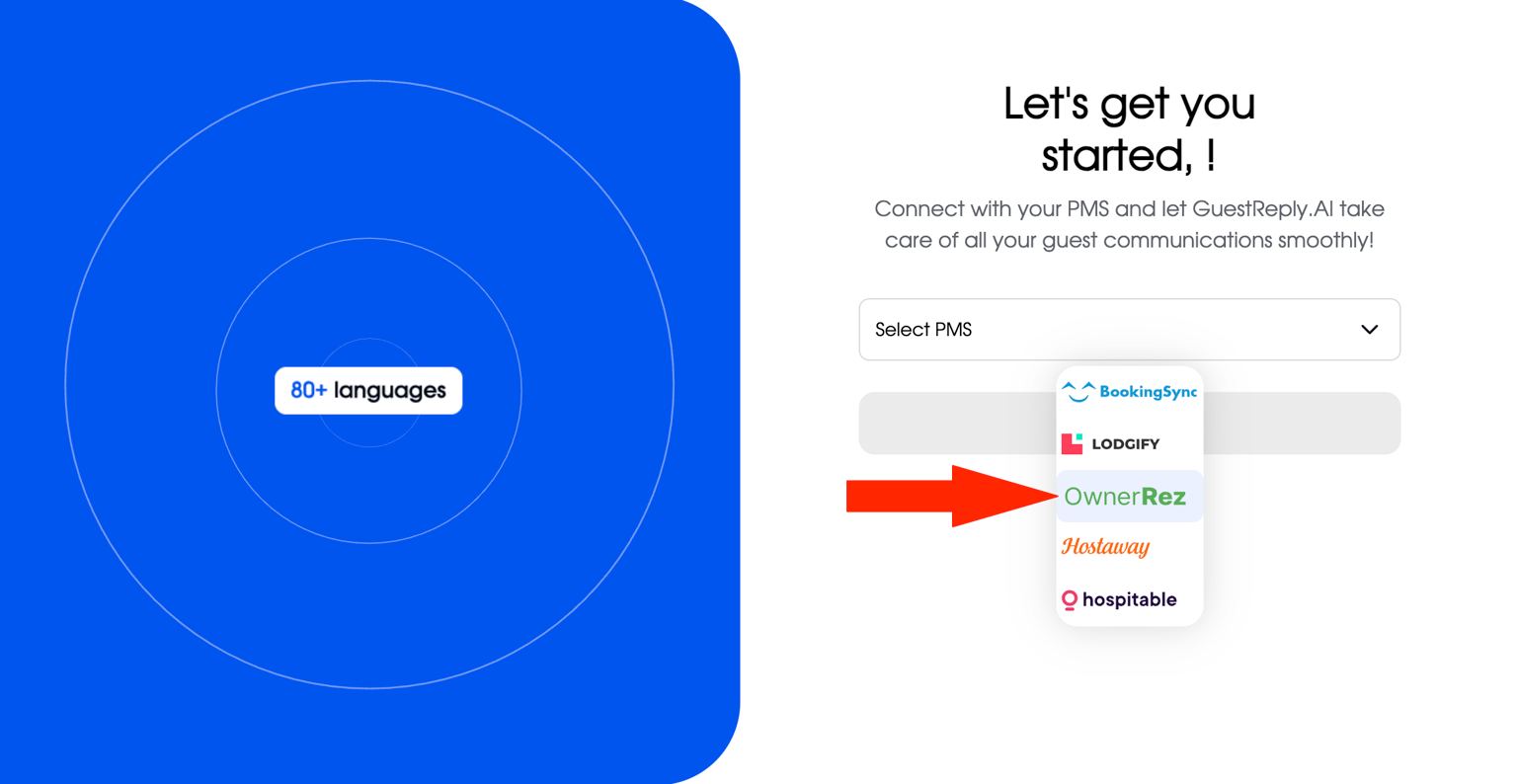
#### Step 1: Select OwnerRez in GuestReply
After registering a new account in GuestReply, you'll see a screen to select your PMS. Click on the **OwnerRez** option from the list of available integrations, and then click on **Link Account.**
#### Step 2: Authorize GuestReply
You'll be redirected to the OwnerRez authorization page. Here, you need to grant GuestReply permission to access your OwnerRez account data. Review the access being requested and click the **Authorize guestreply-dev** button.
**Integration Complete!** Once you authorize the connection, you'll be redirected back to GuestReply. The system will automatically import and sync your listings and conversations from your OwnerRez account.
### What Data Does GuestReply Access?
#### Data we read from your PMS account:
* Account listings
* Account bookings
* Account conversations
* Account availability
#### Data we write to your PMS account:
* We only write new host messages. We do not adjust bookings or listing data.
* We set up webhooks to receive real-time notifications when new messages arrive or new bookings are made. This allows GuestReply to respond to your guests instantly without delays.
## Next steps
* Configure sync settings in your GuestReply dashboard
* Test the integration with a sample booking
* Set up automated responses for your guests