> For the complete documentation index, see [llms.txt](https://help.guestreply.ai/llms.txt). Markdown versions of documentation pages are available by appending `.md` to page URLs; this page is available as [Markdown](https://help.guestreply.ai/readme/user-manual/inbox/tags.md).
# Tags
Tags are labels that help you categorize and filter conversations in your inbox. They allow you to quickly identify conversation types, track issues, and prioritize responses. Tags can be applied **automatically by the AI** or **manually by you**, making it easy to organize large volumes of guest messages without extra effort.
### Default Tag Types
1. **Maintenance:** Activated when a guest reports broken items, malfunctioning appliances, plumbing, or electrical problems.
2. **Cleaning:** Triggered by guest reports regarding cleaning, housekeeping, hygiene issues, or when requesting towels, linens, or maid service.
3. **Refunds & Complaints:** Initiated by guest messages about complaints or refund requests due to dissatisfaction, cancellations, or issues during their stay.
4. **Booking Change:** Applied when a guest requests any modifications to their reservation, including extensions, cancellations, date changes, or other booking adjustments.
5. **Access Issues:** Occurs when a guest encounters trouble entering the property due to malfunctioning lock codes, difficulty finding the property, or missing keys.
6. **Missing Amenity:** Triggered when a guest reports missing amenities or items that were advertised or expected in the property.
#### How to Edit Tags
1\. **Access the Tags Section**
Navigate to the Tags page from your sidebar
**2. Open the Tag Editor**
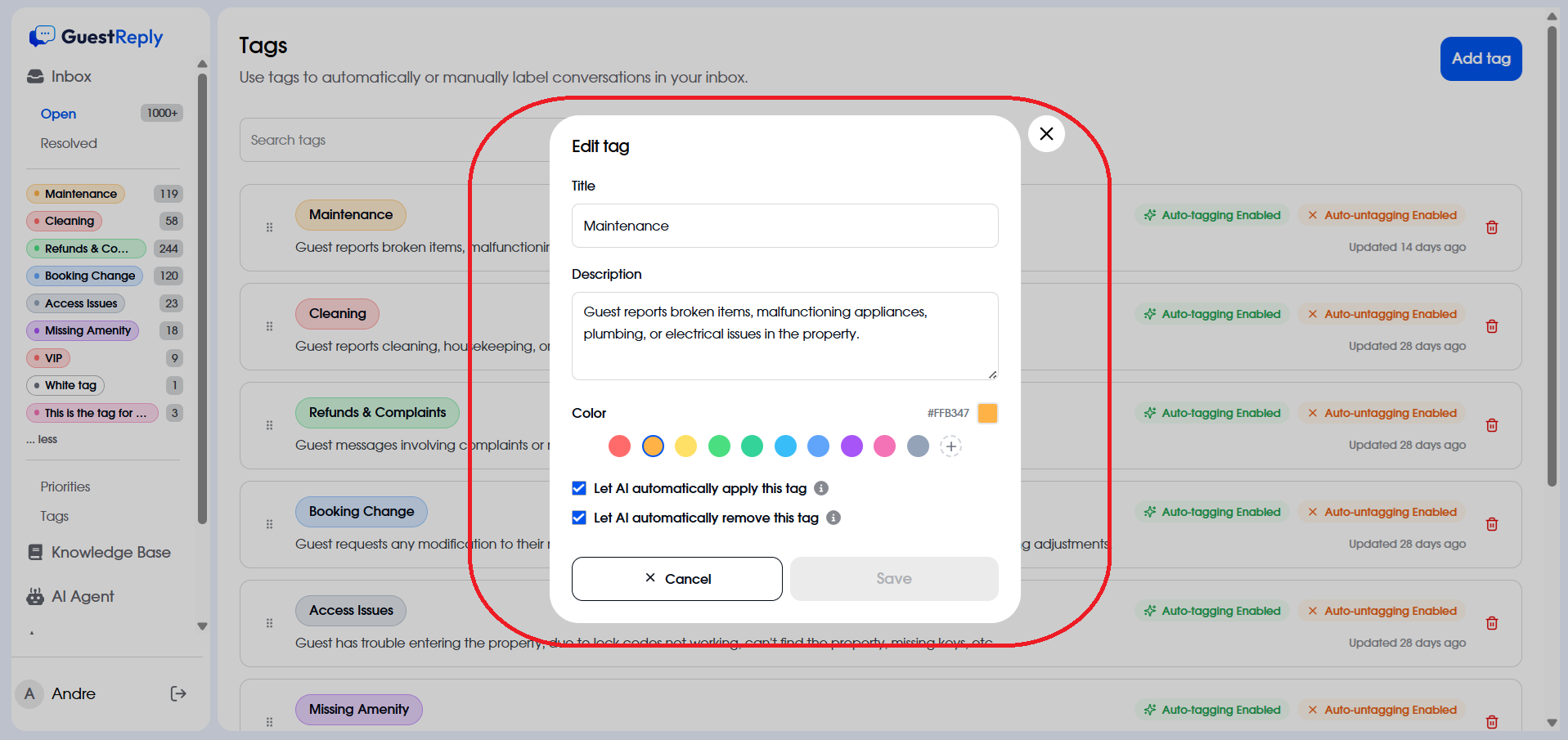
* Click on the tag you want to edit from the list (e.g., "Maintenance", "Cleaning", etc.)
* This opens the "Edit tag" dialog box
**3. Modify Tag Details:**
* **Title**: Edit the tag name in the title field
* **Description**: Update the description to explain what this tag is used for (e.g., "Guest reports broken items, malfunctioning appliances, plumbing, or electrical issues in the property.")
* **Color**: Select a color for the tag by clicking one of the color circles, or enter a custom hex code (like #FFB347)
**4. Configure AI Automation:**
* ☑️ **Let AI automatically apply this tag** - Check this to enable automatic tagging by AI
* ☑️ **Let AI automatically remove this tag** - Check this to allow AI to remove the tag when appropriate
**5. Save or Cancel modifications.**
The tag will be updated and reflected in your inbox conversations with the new settings taking effect immediately.
#### How to add new/customized tags
If you have a specific type of conversation you want to track - like VIP guests, urgent requests, or special categories - you can easily add custom tags manually to organize your inbox. Tags help you label and filter conversations for better workflow management.
1. Click `Add tag` button to open the "Create tag" dialog box.
2. Enter Tag Title and write a description explaining the purpose of this tag.
3. Select a color by clicking one of the colored circles
4. **Configure AI Automation (Optional):**
* **Let AI automatically apply this tag** - Enable this if you want AI to automatically add this tag to relevant conversations
* **Let AI automatically remove this tag** - Enable this if you want AI to automatically remove the tag when no longer relevant.
5. Save or Cancel.
---
# Agent Instructions
This documentation is published with GitBook. GitBook is the documentation platform designed so that both humans and AI agents can read, navigate, and reason over technical content effectively. Learn more at gitbook.com.
## Querying This Documentation
If you need additional information that is not directly available in this page, you can query the documentation dynamically by asking a question.
Perform an HTTP GET request on the current page URL with the `ask` query parameter, and the optional `goal` query parameter:
```
GET https://help.guestreply.ai/readme/user-manual/inbox/tags.md?ask=&goal=
```
`ask` is the immediate question: it should be specific, self-contained, and written in natural language.
`goal` is optional and describes the broader end goal you are ultimately trying to accomplish on behalf of the user. GitBook uses it to tailor the answer towards what is most useful for that goal.
The response will contain a direct answer to the question and relevant excerpts and sources from the documentation.
Use this mechanism when the answer is not explicitly present in the current page, you need clarification or additional context, or you want to retrieve related documentation sections.